
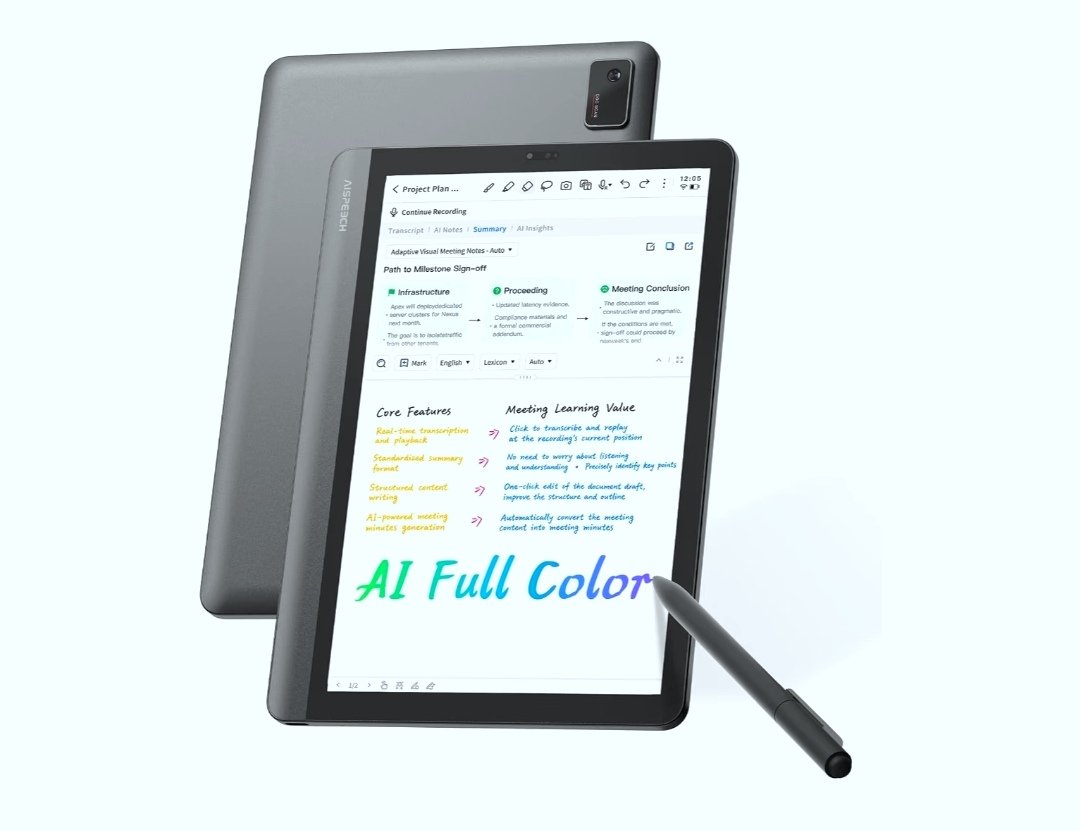
The official iFLYTEK AINOTE companion software for Windows provides cross-device note synchronization and instant computer screen mirroring.
How to Install and Sync AINOTE on Windows
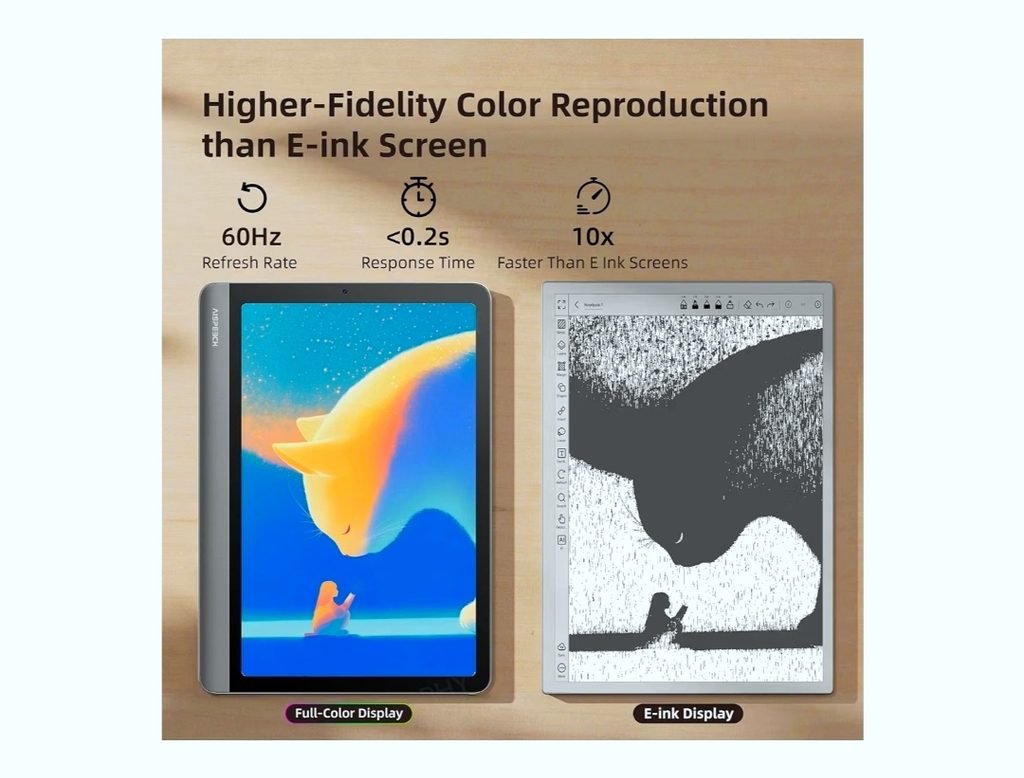
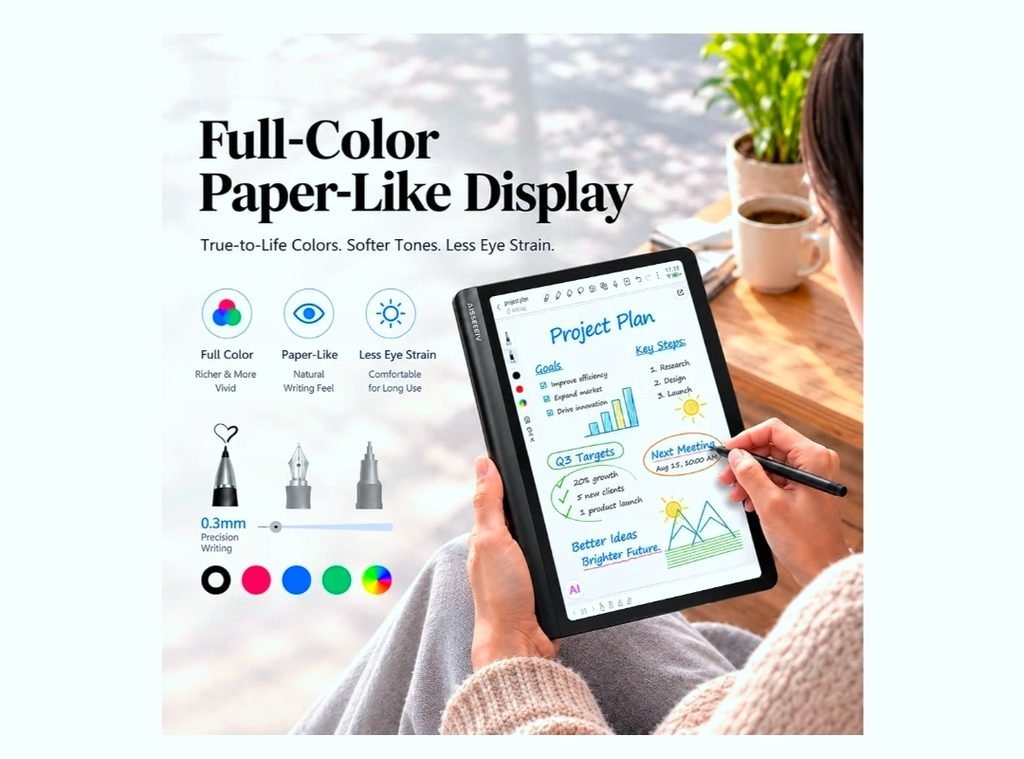
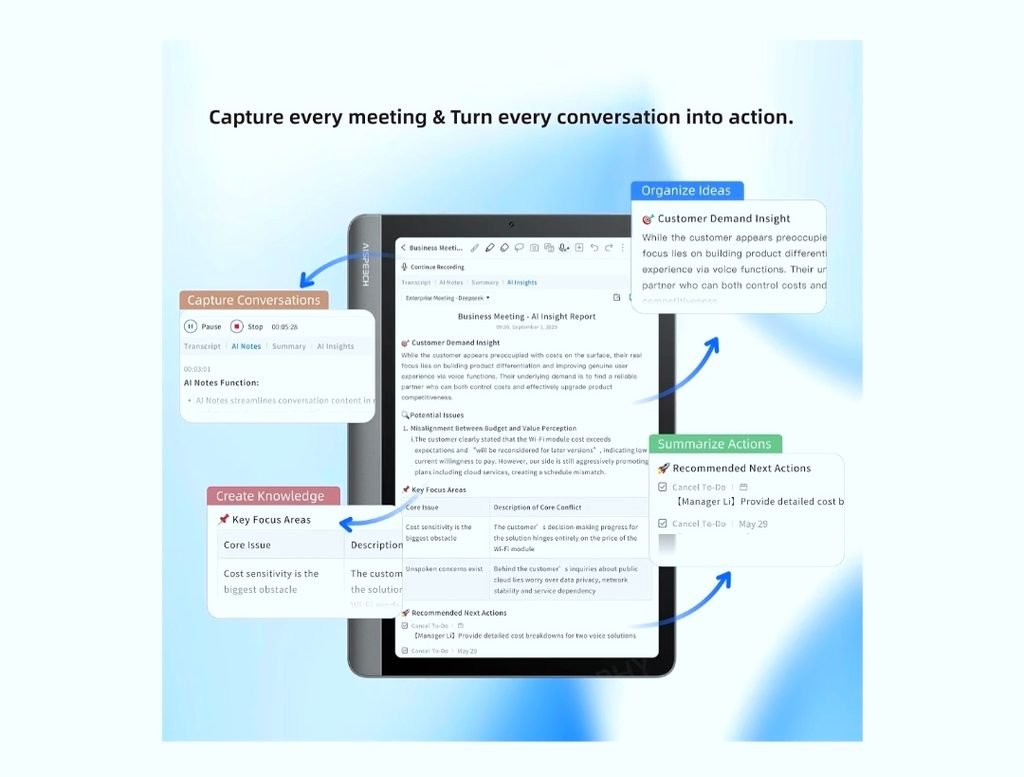
🚀AINOTE Air 8.4 AI Digital Notebook Tablet Full Color Paper Like Display
Check today’s latest price, discounts, and availability on Amazon.
🛒 Buy on AmazonAffiliate Link • We may earn a commission at no extra cost to you.
- Download the software: Navigate to the iFLYTEK AINOTE Software Download Page or the official iFLYTEK App Download Hub to fetch the native installer for Windows.
- Install the application: Open the downloaded installer file on your Windows 10 or Windows 11 device and follow the on-screen setup prompts.
- Select your region: Upon launching the desktop application, select the exact matching region used on your AINOTE 2 or AINOTE Air 2 tablet (e.g., “United States”) and confirm your selection.
- Log in: Input the same account credentials that you employ on your E-Ink tablet
- Access your workflow: Accept the user terms to reveal your synchronized note environment. The app will immediately populate folders like “Meetings”, “Work Plan”, and individual handwritten documents directly onto your PC screen.
Available Windows Tools
- Notes Management App: Keeps your multi-language voice-to-text transcripts, meeting summaries, and digitised handwriting aligned seamlessly between your tablet, mobile phone, and computer.
- Screen Casting Tool: Allows you to instantly project your AINOTE E-Ink screen to your Windows desktop or laptop for real-time presentations.
- USB File Import: Connect your tablet via a USB-C cable to your PC; Windows users can simply open the iFly AI Note 2 bookshelf directory in File Explorer to drag and drop PDF, EPUB, TXT, or DOCX documents straight onto the device.